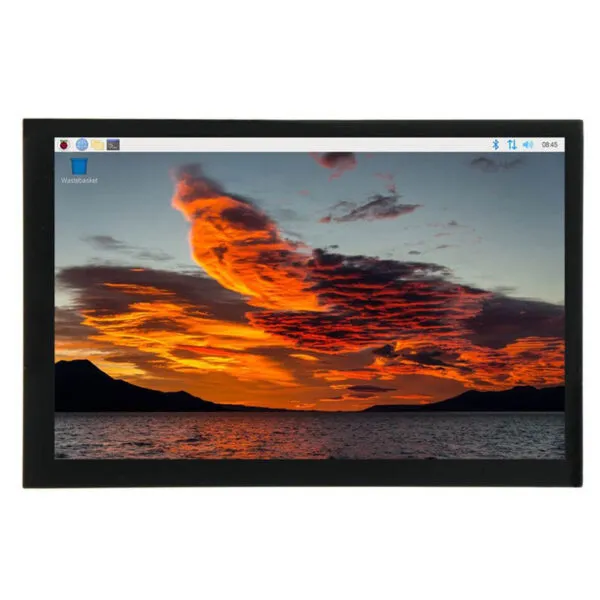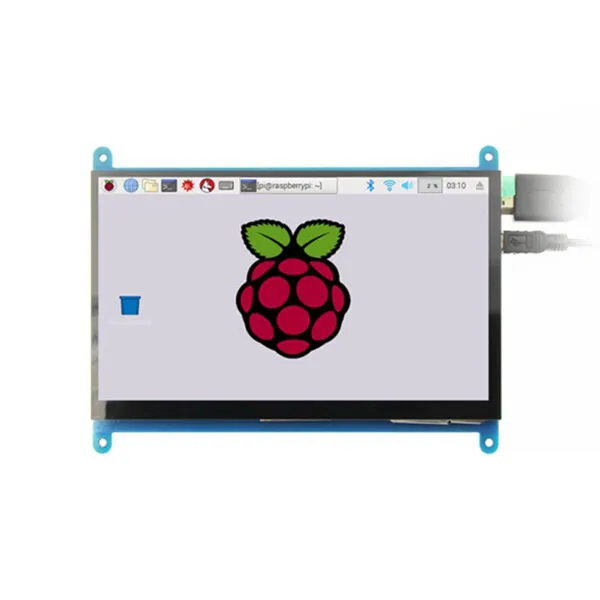
7 inch Portable HDMI Screen with PCAP Support Raspbian, windows,Ubuntu

SKU: DS20237
Size:

Resolution:

Interface:

Touchscreen Support:

Board Support

Raspberry Pi, BB Black, Banana Pi

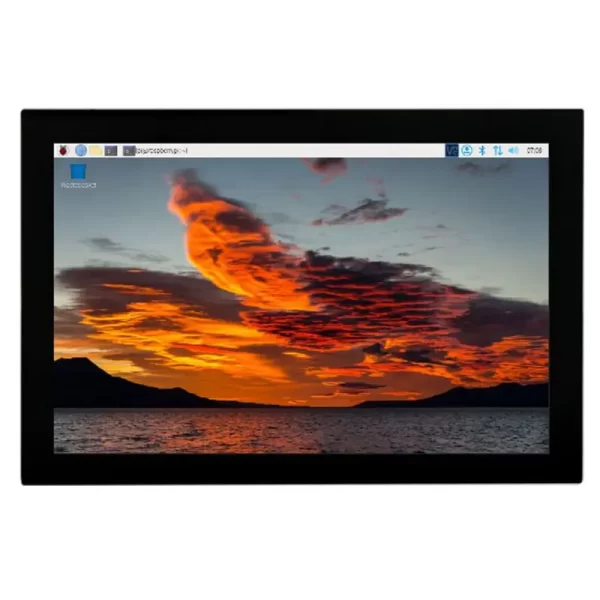
Portable HDMI Screen,7 inch, resolution 1024×600, with Capacitive touch screen, Compatible with Raspberry Pi, BB Black, Banana Pi and other mainstream mini PC, Can as screen extender for laptop

Request Volume Pricing


    Description

    Portable HDMI Screen 7 inch:

    Wide viewing angle/True-to-life colors/Excellent image quality
    1024×600 resolution
    High-definition visuals/Software upscaling supports 1920×1080
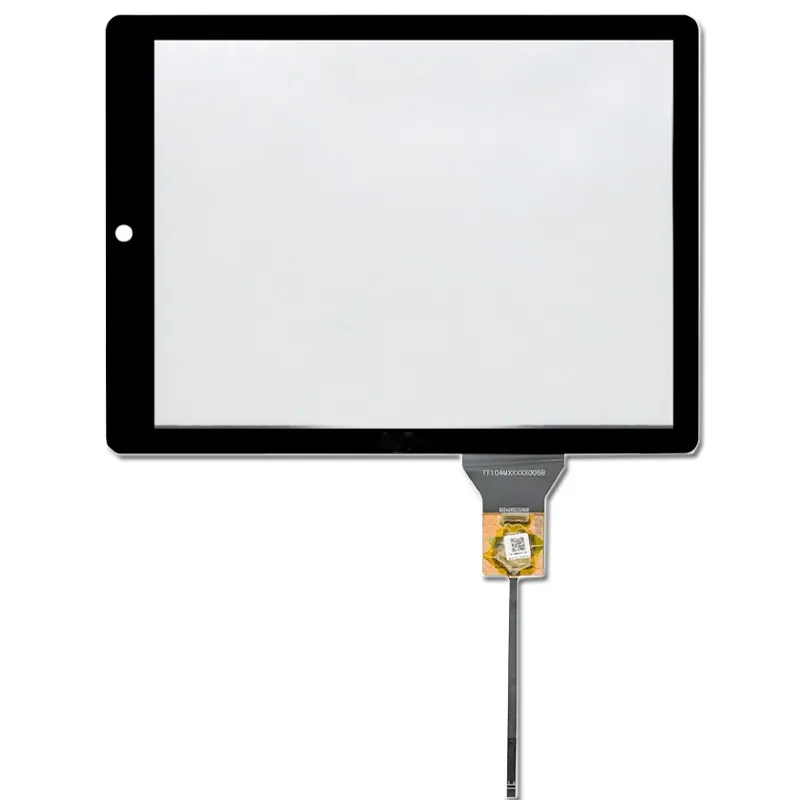
    New Touch Panel
    Tempered glass cover (6H hardness, scratch-resistant)/High-sensitivity capacitive touchscreen/
    Accurate touch response/Supports up to 5-point touch
    HDMI Video Input
    For high-definition video display
    Audio Output
    Stereo dual speakers for immersive sound/3.5mm audio output jack
    Multi-Function Rotary Switch
    Adjust brightness/volume/Navigate menu settings
    Multi-Device Compatibility
    Works with Raspberry Pi, Banana Pi, BB Black, and other main development boards
    Connects to PS4, Xbox 360, Switch, and other gaming consoles
    Supports TV boxes and digital cameras (display only)
    Multi-System Support
    Driver-free touch for Raspbian, Kali Linux, Ubuntu, Kodi, Win10 IOT, etc.Compatible with Win7/8/10/11 (touch driver-free)
    Certifications
    CE and RoHS compliant


    Product Pictures
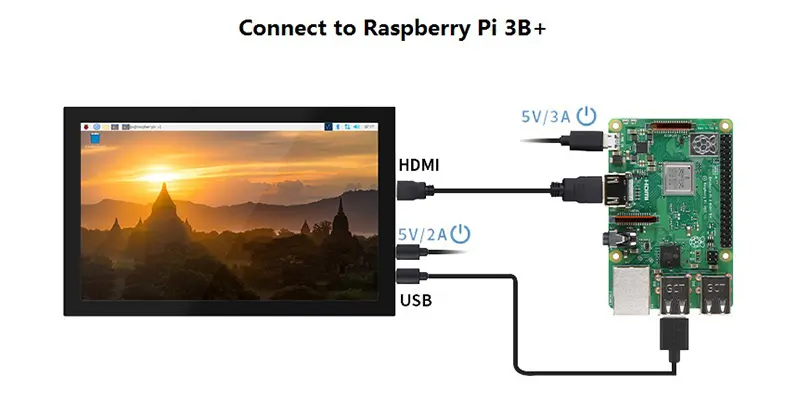
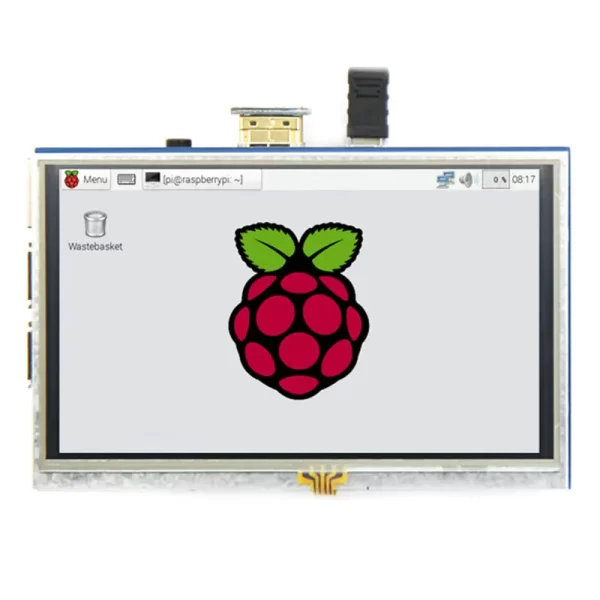
    Raspberry pi 3B
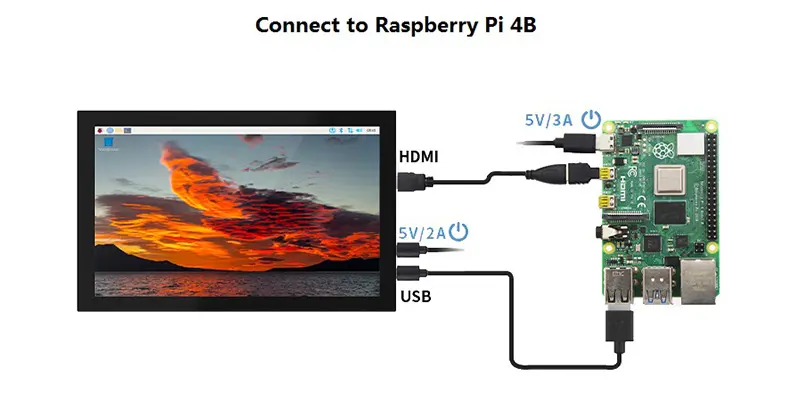
    Rapberry pi 4BHDMI connect to pcconnect to pc vgaconnect to Jetson Nanodimension clarify

    Interface Function:
    Interface Introduction
    Button& Interface Note
    DISPLAY HDMI Input: Connect via Mini HDMI cable (commonly used for computers), supports max resolution 1920×1080.
    POWER/TOUCH Type-C Interface: Combines power supply and touch functionality, connected via Type-C cable.
    Headphone 3.5mm Audio Output: Connects to audio devices (e.g., headphones, speakers).
    MENU Brightness Adjustment:
    In display mode (no OSD menu active), rotate the rotary switch to "+" to trigger brightness settings. Adjust levels by rotating up/down. Exit via short press or auto-exit after 10 seconds of inactivity.
    Volume Adjustment:
    In display mode (no OSD menu active), rotate the rotary switch to “-” to trigger volume settings. Adjust levels by rotating up/down. Exit via short press or auto-exit after 10 seconds of inactivity.
    Menu Settings:
    In display mode (no OSD menu active), short-press the rotary switch to enter menu. Use up/down rotations to select options, short-press to confirm, and long-press to return/exit.
    Display Off:
    In display mode (no OSD active), long-press the rotary switch to turn off display (screen turns black). Short-press to turn back on.


    7" Raspberry Pi Screen Key Parameters :

    Size(inch) 7
    Resolution(pixels) 1024 x 600(RGB)
    Display area(mm) 154.21(W) x 85.92(H)
    Viewing angle ALL 0’ CLOCK
    Backlight adjustment Dial switch adjustment
    Volume adjustment Dial switch adjustment
    Touch screen type Capacitive touch screen
    Touch IC GT911
    Power supply voltage 5V
    Speaker power 8Ω 2W x 2
    Video input interface Mini HDMI
    Audio output interface 3.5mm audio interface + stereo dual speaker output
    Power interface Type-C
    Touch output interface Type-C

    Download

    DS20237 FAQ

    Can I mount DS20237 with my Raspberry Pi and still reach the connectors?

    Use the 7-inch diagonal to shortlist display assemblies, then check the exact drawing for fit. Check the mounting stack, cable exit, port access and clearance for the actual Pi model and enclosure. Test fit with power and data cables plugged in.

    How can I check whether DS20237 works with my Pi and OS image?

    For the listed HDMI interface, confirm the source can output a mode accepted by the supplied controller and check separately how the display is powered. Send us the Pi model, OS image and kernel version. Confirm the display mode and any touch driver on that exact setup before committing to the hardware.

    Should I choose DS20237 or another Pi screen for my interface?

    Try your your application in its intended orientation on a 1024 × 600 canvas before committing to the enclosure. Compare boot reliability, usable screen area, power budget and the OS setup each option needs. Judge readability on the assembled product with its final cover and ambient lighting.

    What should I test on DS20237 before building more units?

    Start from a clean copy of the production OS, then test reboot, resume and reconnect with the production cables and power supply. For the listed capacitive touch, verify the host driver and test edge taps with the final cover and the way operators will actually use it. Check that touch and graphics remain aligned after rotation.

    What should I record so later orders of DS20237 behave like the approved build?

    Record the Pi model, OS image version, approved display and controller revision, cable and power configuration. Include your accepted boot and touch test results when requesting the production quote.

    Additional information

    Size:

    Resolution:

    Interface:

    Touchscreen Support:

    Board Support

    Raspberry Pi, BB Black, Banana Pi

    Custom Display Solutions

    Work with our engineering experts to create the perfect display for your application. 

    Copyright © 2025 Displaysell.com. All Rights Reserved.

    Site Map

    Privacy Policy

    Terms Conditions